Compress Audio Online - Free MP3 & Opus Compressor
Pick a bitrate, hit compress, and download in seconds.
Pi7 Audio Compressor shrinks your audio files right inside your browser. You pick a bitrate and choose MP3 or Opus output. Pi7 downloads a file that can be up to 10x smaller than the original. No account needed. Nothing leaves your device.
What Is Audio Compression?
Audio compression reduces a sound file's size by lowering its bitrate. Bitrate controls how much data stores each second of audio. A 192 kbps file sounds close to the original. A 48 kbps file is much smaller but still clear enough for voice calls and podcasts.
Lossy compression - the type Pi7 uses - removes audio detail your ears rarely notice. The result is a file that plays normally but takes up far less storage space. This is different from dynamic range compression, which changes volume levels during playback.
Common use cases: sharing voice memos by email, uploading recordings to cloud storage, sending audio on WhatsApp or Telegram, and fitting more files on a phone.
How to Compress Audio Files - Step by Step
You can compress audio files in four steps. The whole process takes under a minute for most files.
- Upload your file. Click the upload area or drag your file in. Pi7 accepts MP3, WAV, M4A, AAC, OGG, FLAC, and OPUS audio files. It also accepts video files - MP4, MKV, WebM, MOV, and AVI - and pulls out the audio track automatically.
- Choose your output format. Pick Opus for the smallest possible file. Pick MP3 if the file needs to play on older devices or car stereos.
- Set the compression level. Four options are available: 48 kbps (Very High compression, voice-grade), 64 kbps (High - the default, good balance), 128 kbps (Medium, good for music), or 192 kbps (Low compression, near-original quality).
- Hit Compress and download. Pi7 shows you the original size next to the compressed size. Preview the result with the built-in audio player. Download only if you are happy with it.
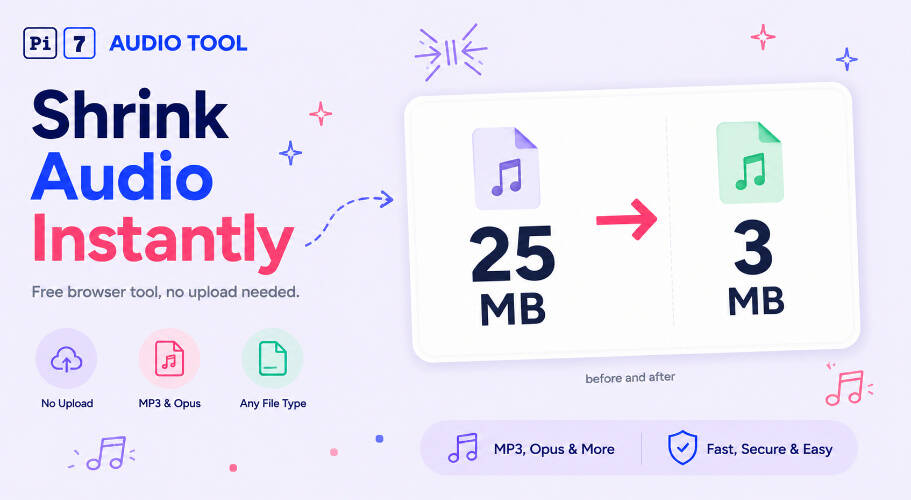
We compressed a 25 MB voice memo to under 3 MB using the High (64 kbps) setting. The speech was still completely clear. If you need to trim the file before compressing, do that first to cut the run time and reduce the size even further.
MP3 or Opus - Which Format Should You Pick?
Both formats work well. The right choice depends on where you plan to play the file.
| Feature | MP3 | Opus |
|---|---|---|
| File size at same quality | Larger | Smaller |
| Voice clarity at low bitrate | Good | Excellent |
| Plays on older car stereos | Yes | No |
| Works on WhatsApp, Telegram, Discord | Yes | Yes |
| Supported on iPhone and Android | Yes | Yes (modern OS) |
| Best for | Music, broad compatibility | Speech, modern apps |
Use Opus when size matters most and you are sharing the file digitally. Use MP3 when the file needs to play on hardware you do not control.
How to Compress a Call Recording
Call recordings are a common use case for an audio compressor. A one-hour phone or video call recorded at default settings can run 80-150 MB. That is too large to email or upload quickly.
To compress a call recording, upload the file to Pi7, set the format to Opus, and choose 48 kbps or 64 kbps. Voice audio does not need high bitrates. At 64 kbps, an hour-long call recording drops to roughly 28 MB - small enough to attach to most email clients or store in iCloud or Google Drive.
Pi7 accepts recordings from iPhone's Voice Memos app, Android's built-in recorder, Zoom, Google Meet, and any other tool that saves to MP3, M4A, WAV, or MP4. If your recording came out quiet, boost the volume before compressing so the compressed file stays audible.
Choosing the Right Bitrate for Your Recording
Bitrate is the main dial you control. Here is a plain-language guide to the four options:
- 48 kbps - Very High compression: Smallest file size. Works well for voice calls, podcasts, and spoken memos. Music starts to sound thin at this level.
- 64 kbps - High (default): Good balance of size and clarity. Works for voice and simple music. Most users start here.
- 128 kbps - Medium: Good quality for music. File size is moderate. Use this for songs you want to keep sounding full.
- 192 kbps - Low compression: Close to the original quality. Use this when you need a slightly smaller file but cannot afford any quality loss.
Not sure which to pick? Start at 64 kbps, preview the result, and move up or down from there. The preview player lets you check quality before you commit to downloading.
You can also remove silent gaps from your recording before compressing to get an even smaller final file without touching the bitrate.
How to Compress Audio for Music and Podcasts
Music files need higher bitrates to stay clear. At 48 kbps, instruments start to blur and high frequencies fade. For music, use 128 kbps Opus or 128-192 kbps MP3.
Podcasts sit between voice and music. A spoken-word podcast with light background music sounds fine at 64-96 kbps. We tested a 45-minute podcast episode: the original WAV file was 480 MB. At 64 kbps Opus, it compressed to 21 MB with no noticeable change in speech quality.
If you need to compress audio for a ringtone, use Pi7's ringtone maker to cut the clip to size first, then run it through the compressor at 64 kbps Opus for the smallest possible file.
Your File Stays on Your Device - No Exceptions
Pi7 Audio Compressor runs entirely in your browser using WebAssembly. Your audio file is never uploaded to any server. Pi7 has no access to your recording.
There is no signup form. There is no email field. There is no watermark on the output file. You do not create an account or agree to a subscription. The tool is free every time you use it.
This matters for call recordings and voice memos that may contain private conversations. The file stays on your computer or phone from start to finish. Close the tab and the file is gone from memory.
If you need to convert the audio format first before compressing, that conversion also runs fully in your browser with the same privacy guarantee.
Frequently Asked Questions
Does compressing audio reduce quality?
Yes, but the change is often too small to notice. At 64 kbps, voice recordings sound clear and natural. At 128 kbps, music retains most of its detail. Use the built-in preview player to check the result before downloading.
What is the largest file I can compress?
Pi7 processes files locally using WebAssembly, so the limit depends on your device's available memory rather than a server cap. Most users compress files up to several hundred MB without issues. Very large files may take longer on older devices.
Can I compress audio on an iPhone or Android phone?
Yes. Pi7 works in mobile browsers on iPhone and Android. Open the page in Safari or Chrome, upload your file from the Files app or your gallery, set your options, and download the compressed file. No app install needed.