Volume Booster Online - Amplify Any Audio Free
Boost audio up to 400% in your browser. No signup needed.
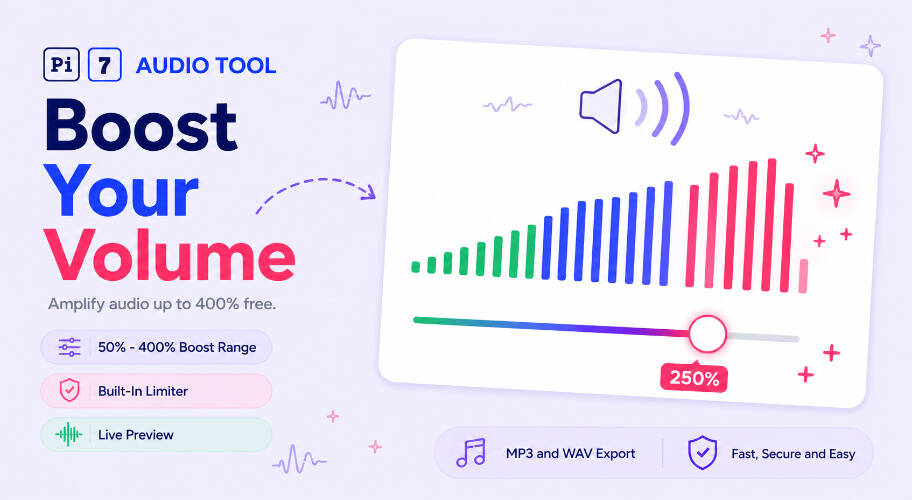
Pi7 Volume Booster raises the loudness of any audio file directly in your browser. You get a boost range from 50% to 400%. A built-in limiter stops distortion. A live preview plays the result before export. It works on MP3, WAV, FLAC, M4A, AAC, OGG, OPUS, AIFF, and CAF. Pi7 also pulls audio out of video files. No upload to a server. No account. Completely free.
What Is a Volume Booster and How Does It Work?
A volume booster is a tool that raises the loudness of an audio file beyond its original recording level. Pi7's sound booster processes your file using WebAssembly inside your browser tab. Your audio never leaves your device.
The boost slider sets a gain multiplier. At 200% you double the loudness. At 400% you quadruple it. The built-in limiter watches for peaks that would cause clipping and pulls them back automatically. You hear louder audio without the crunch.
Boost Levels Explained - What Each Percentage Does
Choosing the right boost level depends on how quiet your file is and how you plan to use it. The table below shows what each level does and when to use it.
| Boost Level | Effect | Best For | Clipping Risk |
|---|---|---|---|
| 50% - 99% | Quieter than original | Reducing overly loud recordings | None |
| 100% | Original loudness - no change | Previewing or testing output format | None |
| 150% | Noticeably louder | Slightly quiet phone recordings | Very low |
| 200% | Doubled loudness | Quiet podcasts, voice memos, voice notes | Low - limiter handles it |
| 300% | Very loud - strong amplification | Barely audible recordings, old audio | Moderate - limiter active |
| 400% | Maximum boost - quadrupled | Extremely quiet source files only | Higher - limiter essential |
We tested a 35% quiet podcast recording boosted to 250%. It stayed clean with no audible clipping. The built-in limiter did the work.
How to Increase Audio Volume - Step by Step
You can increase audio volume in under a minute. Here are the exact steps.
- Open the tool. Go to the Pi7 Volume Booster at the top of this page.
- Upload your file. Click "Upload" and pick your audio file. Pi7 accepts MP3, WAV, M4A, AAC, OGG, FLAC, OPUS, AIFF, and CAF. You can also drop in a video file (MP4, MKV, WebM, MOV, AVI) and Pi7 extracts the audio track for you.
- Set the boost level. Drag the slider from 50% to 400%. Start at 150% and go up if you need more volume. Watch the waveform display update as you move it.
- Preview. Hit the play button. You hear the boosted audio before exporting anything.
- Choose your output format. Pick MP3 for a smaller file or WAV for lossless quality.
- Export. Click download. Your louder file saves straight to your device.
The whole process runs inside your browser. Pi7 uses WebAssembly so the boost is fast even on large files.
Before boosting, you can trim unwanted sections with Pi7's audio cutter to keep the file tight. You can also cut silent gaps out first - boosting silence just makes background hiss louder.
Make Audio Louder - Which Files Does It Work On?
Pi7 can make audio louder from almost any source. The supported input formats cover the most common audio and video types.
- Audio files: MP3, WAV, M4A, AAC, OGG, FLAC, OPUS, AIFF, CAF
- Video files (audio extracted automatically): MP4, MKV, WebM, MOV, AVI
- Voice memos from iPhone saved as M4A or AIFF
- WhatsApp voice notes (OGG format on Android, M4A on iOS)
- Downloaded YouTube audio in MP3 or M4A
- Podcast recordings in MP3, WAV, or FLAC
- Screen recordings in MP4 or MOV with quiet audio tracks
- Old digitized recordings in WAV or AIFF that were captured at low levels
If you need to convert an unusual format first, use Pi7's audio converter to get it into a supported type, then boost it.
How to Boost MP3 Volume Specifically
MP3 is the most common format people want to boost. Pi7 handles MP3 files the same way as any other format - upload, set your level, and export. You can export back to MP3 to keep the file size small, or switch to WAV if you want no re-encoding.
One thing to know with MP3: the format uses lossy compression. Re-exporting to MP3 adds a second round of compression. For most listening purposes at 128kbps or higher source files, the quality difference is not noticeable. If you need zero quality loss, export to WAV instead.
To increase MP3 volume on iPhone or Android, open this page in your mobile browser. The tool works in Safari on iOS and Chrome on Android without any app to install.
After boosting, if the file is too large to share on WhatsApp or email, you can shrink the boosted file with Pi7's audio compressor.
When Does a Sound Booster Actually Help?
A sound booster solves specific, common problems. Here are the situations where it makes the biggest difference.
- A voice memo recorded too far from the phone mic and barely audible on playback
- A podcast episode where one speaker is much quieter than the other
- A video you filmed in a noisy environment where the subject sounds distant
- Old family recordings digitized from cassette at low capture levels
- An audio book or lecture downloaded from a platform that masters at low volume
- Background music in a video that needs to feel more present
- A song you want louder without re-downloading a different version
In all these cases, Pi7's audio booster applies the gain cleanly and lets you preview before committing to the export. If you plan to merge several boosted clips afterward, use Pi7's audio merger to join them into one file.
Your Audio Never Leaves Your Browser
Pi7 Volume Booster runs entirely on your device. Your audio file does not travel to any server at any point.
When you upload a file, the browser reads it into local memory. WebAssembly handles the gain processing inside the tab. The downloaded output file writes straight to your device. Pi7's servers are never involved in the audio data at any point.
There is no signup form, no account, no email required. There is no watermark on exported files. The tool is completely free to use as many times as you want. You do not need to install anything.
This matters if you are boosting personal recordings, private voice memos, business audio, or anything else you would not want to pass through an unknown third-party server.
Frequently Asked Questions
Does boosting audio damage the quality?
Boosting within a reasonable range - typically up to 200% on most files - does not damage quality. Pi7's built-in limiter prevents clipping, which is the main cause of distortion at high boost levels. If you push a very quiet file to 400%, some background noise will also get louder, but the signal itself stays clean. Export to WAV if you want zero re-encoding artifacts.
Can I use this as a sound booster for video files?
Yes. Pi7 accepts MP4, MKV, WebM, MOV, and AVI video files. It extracts the audio track, applies your boost, and exports the result as an MP3 or WAV file. If you need the audio merged back into a video, you will need a separate video editor to do that step.
What is the maximum volume increase I can apply?
The maximum boost is 400%, which quadruples the loudness of the original file. The minimum is 50%, which cuts the loudness in half. The default is 100%, meaning no change. For most quiet recordings, a setting between 150% and 250% gives the best result without introducing noise.