Merge Audio Files Online - Join Tracks Free
Combine audio clips one after another into a single file.
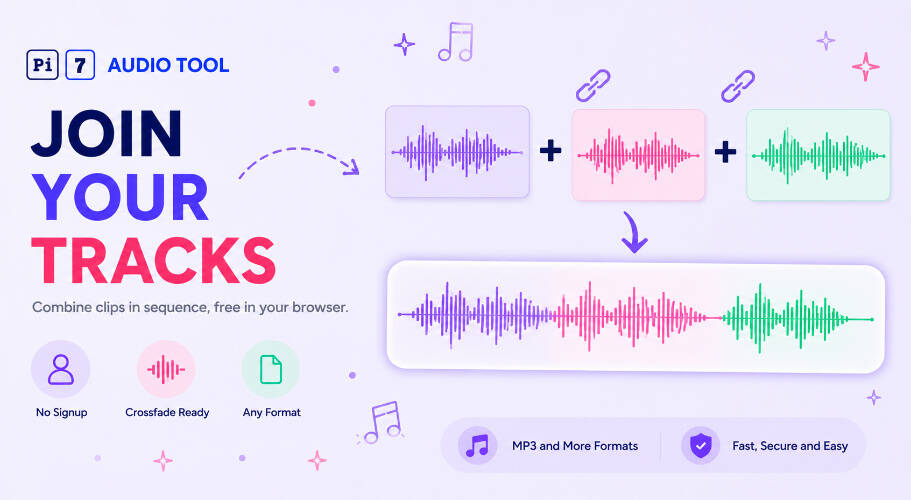
Pi7 Audio Merger joins audio files end-to-end inside your browser. Upload your clips, set the order, and hit Merge. You get one continuous audio file in seconds. Tracks play one after another, not at the same time. Works with MP3, WAV, M4A, AAC, OGG, FLAC, OPUS, and most video formats. No upload to any server. No signup required.
How to Merge Audio Files in Four Steps
You do not need to install anything. Open the tool, add your files, and merge.
- Upload your files. Click the upload button or drag files onto the page. Use the + Add Track button to keep adding clips to the queue. MP3, WAV, M4A, AAC, OGG, FLAC, OPUS, and video formats all work.
- Set the order. Drag tracks up or down to control the playback sequence. The merged file plays them in exactly this order, one after the other.
- Trim and preview. Use the per-track section selector to cut a region from any clip before it enters the merge. Click Play All to preview the full sequence. You can also trim each clip before merging if you need finer edits.
- Merge. Click the Merge button. Pi7 processes everything locally and exports a single MP3 file.
We merged six podcast segments into a single 45-minute episode in about 12 seconds. The output was clean with no gaps between tracks.
What Does Merging Audio Actually Mean?
Merging audio means placing audio clips one after another on a single timeline. Track 1 finishes, then Track 2 starts, then Track 3 starts, and so on. The result is one continuous file.
This is different from mixing, where two tracks play at the exact same time - for example, a voice recording on top of background music. If you need to overlay tracks that play simultaneously, that is a different operation entirely.
Use this page when you want to join, combine, or concatenate audio end-to-end. Use Pi7's background music tool to mix two tracks together at the same time if you need overlay-style mixing.
Merging vs Mixing - Which One Do You Need?
These two words get confused constantly. Here is a plain comparison.
| Feature | Merge / Join (this tool) | Mix / Overlay (Pi7 Background Music Tool) |
|---|---|---|
| How tracks play | One after another, in sequence | Both at the same time |
| Typical use | Join podcast episodes, combine songs into a playlist, stitch interview segments | Add background music under a voice recording, layer two audio tracks |
| Output length | Sum of all clip lengths (minus crossfade overlap) | Length of the longest track |
| Right tool | Pi7 Audio Merger (this page) | Pi7 Add Background Music |
If you searched for "mix audio online" or "audio mixing online" and you want to overlay a voiceover on top of a music track, you want the overlay tool - not this one. Mix two tracks together at the same time here.
Smooth Crossfade Between Every Track
A hard cut between two clips can sound jarring. Pi7 Audio Merger includes an optional crossfade that softens the transition point.
Turn crossfade on with the toggle. Use the slider to set the overlap length - anywhere from 0 to 8 seconds, with 2 seconds as the default. At the transition point, the outgoing track fades out while the incoming track fades in. The two clips overlap briefly at that moment only.
This is still concatenation with a transition. The tracks do not play over each other across their full duration. It is not mixing. The crossfade just makes the join smoother.
We tested crossfades on music tracks and podcast chapters. A 2-second crossfade on music felt natural. A 0.5-second crossfade on spoken audio removed the click without any noticeable overlap.
What You Can Combine and Export
Pi7 Audio Merger handles a wide range of file types. You are not limited to one format per session - mix and match formats freely.
- MP3 - the most common audio format
- WAV - lossless, often used in recording and production
- M4A and AAC - common on iPhone and Apple devices
- OGG and OPUS - open formats used in web and streaming apps
- FLAC - lossless compressed audio
- Video files - Pi7 extracts the audio track automatically
The merged output is an MP3 file. If you need to shrink a large merged file afterward, use Pi7 to shrink the merged file without noticeable quality loss.
If you do not have the source audio yet, you can record fresh audio first in your browser and then come back to merge it.
Common Ways People Combine Audio Files
Audio merging shows up in more places than you might expect. Here are the most common use cases.
- Podcast production: Join intro music, interview segments, and an outro into one episode file.
- Combine songs into a playlist: Put multiple tracks end-to-end for a DJ set, workout playlist, or event background music.
- Merge MP3 audiobook chapters: Combine individual chapter files into a single long MP3.
- Join voice memos: Stitch several short recordings from your phone into one clip.
- Assemble lecture recordings: Combine multiple session recordings captured on different days.
- Create ringtones or sound effects: Chain short clips into a longer custom sound.
- Prepare audio for video: Join narration segments before pairing with footage.
If a clip needs to be a specific length first, use Pi7 to loop a clip to a target length before adding it to the merge queue.
Your Audio Never Leaves Your Device
Pi7 Audio Merger runs entirely in your browser using WebAssembly. Your files stay on your device the whole time.
No file is sent to any server. Pi7 does not store your audio. Pi7 does not require an account. There is no watermark on the output file. The merged MP3 you download is clean and unaltered except for the join itself.
This matters for sensitive content - interviews, legal recordings, private voice notes, or any audio you would not want to upload to a third-party server. The processing happens locally, so there is nothing to intercept in transit.
Frequently Asked Questions
Does the crossfade mean two tracks are playing at the same time?
Only at the very transition point, briefly. The outgoing track fades out while the incoming track fades in. This overlap lasts just a few seconds at the join. The tracks do not play simultaneously across their full length. If you want two tracks layered throughout their full duration - for example, a voice and background music playing together - use Pi7's background music mixer instead.
Can I reorder the tracks before merging?
Yes. Drag any track up or down in the queue to change the sequence. Pi7 merges them in the order you set. You can also use the per-track section selector to cut a specific region from each clip before it enters the merge.
What if my audio files are too large or the merge is slow?
Pi7 processes files locally using WebAssembly, so speed depends on your device. Larger files take a bit longer. If your merged file ends up larger than you need, use Pi7 to shrink the merged file after export.