Audio Cutter - Trim Any Audio Free Online
Cut the exact seconds you want. No account needed.

Pi7 Audio Cutter trims any audio file directly in your browser. Drag the handles on the waveform, preview your cut, and download. It accepts all common formats - MP3, WAV, FLAC, AAC, OGG, M4A, OPUS - plus video files like MP4 and MKV. No account, no upload to a server, no watermark.
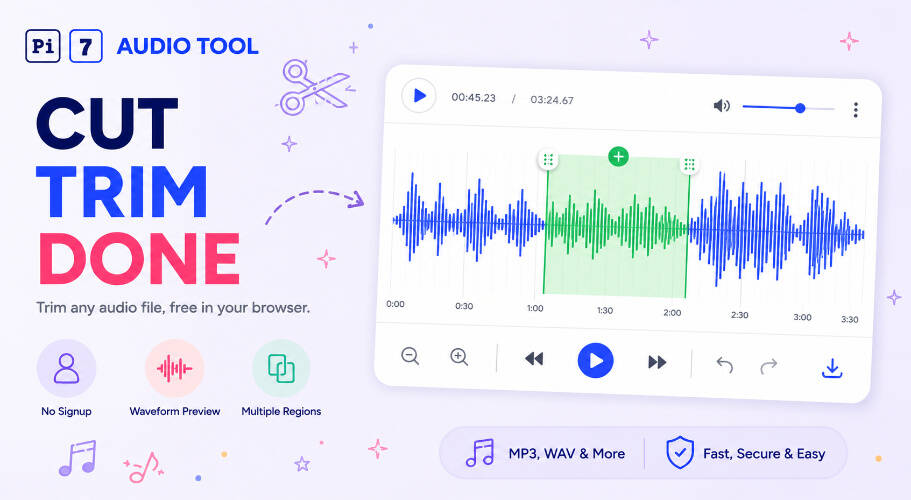
How to Cut Audio Online in Three Steps
Pi7 keeps the process short. You do not need to read a manual to get a result.
- Open your file. Click the upload area or drag any audio or video file onto the page. Pi7 reads the file locally in your browser.
- Mark your region. The waveform loads immediately. Drag the green region handles to set the start and end of the section you want. Click the play button to preview just that region.
- Export your cut. Hit the cut button. Pi7 processes the audio using WebAssembly and downloads the finished file. The whole thing takes seconds.
You can add fade-in or fade-out seconds before you export. The output keeps the same format and bitrate as your source file.
Audio Trimmer or Audio Cutter - What Is the Difference?
An audio trimmer removes unwanted material from the edges of a file. You trim the silence at the start or the applause at the end. An audio cutter works on any portion of the file - middle, start, or end. Pi7 does both in the same tool.
You can trim a long recording down to the 30 seconds that matter. Or you can cut a specific section out of the middle and keep everything else. The "Remove Selected Region" checkbox switches between the two modes. Check it to delete the highlighted section. Leave it unchecked to keep only that section.
Most people looking for an audio trimmer online want exactly this: a fast way to shorten or isolate a clip without re-encoding the whole file.
MP3 Editor - What Can You Do Beyond a Basic Cut?
Pi7 works as a lightweight mp3 editor for the most common editing tasks. You do not need to install software to do any of these:
- Cut a single precise segment from any point in the file
- Mark multiple regions on one file with the "+ Add Region" button and export each separately
- Add a fade-in or fade-out at any custom length in seconds
- Preview any region before committing to the cut
- Extract the audio track from MP4, MKV, WebM, MOV, or AVI video files
- Cancel a running process mid-way if you change your mind
- Preserve the original bitrate - no forced re-encoding to a lower quality
We tested Pi7 on files up to 200 MB and the browser handled all of them without crashing. The WebAssembly engine does the heavy lifting locally on your device.
If you need to go further - for example, add background music to a voice track - Pi7 has separate tools for that.
Cut a Song for a Ringtone - Step by Step
Ringtones need to be short. Most phones play between 20 and 40 seconds before the call goes to voicemail. Pi7 Audio Cutter is a fast ringtone cutter because you can see the exact waveform and set start and end points to the millisecond.
Here is how to cut a ringtone from any song:
- Upload the MP3 or WAV file you want to use.
- Listen to the song using the waveform player to find the best 30-second section - usually the chorus or hook.
- Drag the green handles to mark that section exactly.
- Add a 1-second fade-in and a 1-second fade-out so the clip does not start or stop abruptly.
- Click cut and download the short MP3 clip.
For iPhone ringtones, you need an M4R file, not an MP3. After cutting your clip here, use Pi7's ringtone maker to convert the clip to iPhone M4R or Android MP3 format and get it onto your phone. That tool also handles the file transfer steps for iOS.
If you want the ringtone to loop naturally, loop a short clip to a target length using Pi7's audio looper before setting it as your tone.
What File Formats Does the Audio Cutter Support?
Pi7 accepts a wide range of formats so you do not have to convert first.
| Category | Formats Accepted | Notes |
|---|---|---|
| Compressed audio | MP3, AAC, OGG, OPUS | Most common for music and podcasts |
| Lossless audio | WAV, FLAC, M4A | Full quality preserved on output |
| Video (audio extracted) | MP4, MKV, WebM, MOV, AVI | Pi7 pulls the audio track automatically |
The output file matches your input format and bitrate. If you upload a 320kbps MP3, you get a 320kbps MP3 back. No forced downgrade.
After cutting, if the file is still large, you can shrink the file size after cutting with Pi7's audio compressor.
Multiple Regions - Cut Several Parts at Once
Most free audio cutters online let you mark one region per session. Pi7 supports multiple regions on the same file.
Click the green region marker on the waveform to set your first cut point. Then click the "+ Add Region" button to add a second marker. You can keep adding regions and adjust each one independently with its own drag handles. Each region gets its own millisecond start and end point.
This is useful when you want to extract several quotes from a long interview, or mark every chorus in a song to compare them. Pi7 lets you preview any region individually before you export.
The "Remove Selected Region" toggle changes what happens on export. When it is unchecked, Pi7 keeps only the marked region and removes everything outside it. When it is checked, Pi7 deletes the marked region and keeps everything else. Both modes work across multiple regions.
Your Audio Never Leaves Your Device
Pi7 Audio Cutter runs entirely in your browser using WebAssembly. Your audio file is never uploaded to any server. Pi7 does not store your file, log its contents, or send any audio data over the internet.
You do not need to create an account. You do not enter an email address. There is no watermark on your output file. No subscription is required and there is no trial period. The tool is free for every file, every time.
This matters when the audio contains private content - a recorded meeting, a voice note, or an unreleased track. The file stays on your machine from start to finish. We have confirmed through network inspection that zero audio bytes leave the browser during processing.
Frequently Asked Questions
Can I cut audio on my phone?
Yes. Pi7 Audio Cutter works in mobile browsers on iPhone and Android. Open the page in Safari or Chrome, upload your file from your Files app or gallery, and cut as normal. The waveform and region handles work with touch. Download saves the file to your device.
Does cutting audio reduce the quality?
No. Pi7 cuts at the exact frame boundaries of your file and preserves the original bitrate. A 320kbps MP3 stays at 320kbps after cutting. The only exception is if you add a fade-in or fade-out, which requires a short re-encode of those few seconds. The rest of the file is untouched.
What is the maximum file size I can cut?
Pi7 has no hard file size limit set by the server because no file reaches the server. The practical limit depends on your device memory. We tested files up to 200 MB without issues on a standard laptop. Very large files on low-memory phones may be slower to load the waveform.