Ringtone Maker
Pick a section from any song. Get an iPhone M4R or Android MP3 ringtone with smooth fades.
Step 1: Add Your Audio
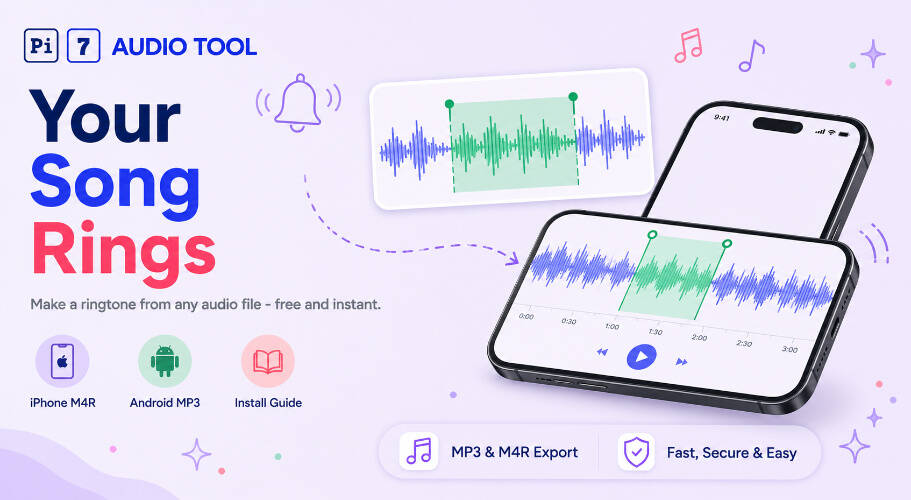
Pi7's free ringtone maker turns any song into a phone ringtone in your browser. Drag the green region to pick your favorite part. Download an M4R for iPhone or an MP3 for Android. No software to install. No signup. No uploads to any server. Your audio never leaves your device.
How to Make a Ringtone from a Song
The process takes about five steps. You can do it in under a minute for most songs.
- Click Upload Audio and pick your file. Pi7 accepts MP3, WAV, M4A, AAC, OGG, FLAC, and OPUS.
- Watch the waveform load. A green region appears automatically. It covers 30 seconds starting at 30% into the song.
- Drag the left or right handle to resize the selection. Or drag the whole region body to slide it. The minimum selection is 4 seconds.
- Choose your format: iPhone (M4R) or Android (MP3). The length pill turns green, yellow, or red to show if your clip fits the format limit.
- Click Download. Pi7 encodes the file in your browser and saves it to your device.
You can also type exact start and end times in the mm:ss fields instead of dragging. That helps when you know the chorus starts at exactly 1:14.
The Free Ringtone Maker That Actually Works on iPhone
Most free online tools export MP3 files. iPhone ignores MP3 ringtones. iOS only accepts the M4R format, which is AAC audio wrapped in a specific container. Pi7 exports a real M4R file that iOS recognizes as a ringtone - not a renamed audio file.
The iPhone M4R format has a hard 40-second limit set by iOS. Pi7 enforces this automatically. The length pill turns red if your selection goes over 40 seconds, so you know before you download.
We built and tested this on a real iPhone to confirm the file installs without errors. A properly made M4R shows up in the Tones list in your iPhone Settings app after you follow the install steps.
Android Ringtone Maker - Any Length, Any Source
Android is more flexible. The MP3 format works as a ringtone on every major Android phone. Pi7 lets you export any length up to the full song when you pick the Android option.
The output bitrate matches your source file. A 320 kbps MP3 source stays at 320 kbps. A lossless WAV or FLAC file exports at the highest useful quality. You do not lose quality by going through Pi7.
If your source file is in an unusual format, you can convert the audio file to MP3 or AAC first before uploading to the ringtone maker.
Fine-Tune Your Ringtone with Fades and Volume
The advanced options panel sits below the waveform, collapsed by default. Open it to adjust three settings.
- Fade in - 0 to 2 seconds. Default is 0.5 sec. A short fade stops the ringtone from starting with a jarring cut.
- Fade out - 0 to 3 seconds. Default is 1.0 sec. Fading out sounds cleaner than ending mid-beat.
- Volume boost - -6 dB to +6 dB. Default is 0. Use this if your source song is quiet. If the song is too quiet before you upload, you can also boost the volume of the source MP3 first for a stronger result.
Hit the play button to preview exactly the selected region. The cursor jumps to the start handle and stops at the end handle. What you hear is exactly what will export.
What Happens After You Download - Install Guide for Both Phones
Pi7 shows a built-in "How to set this as your ringtone" panel right after your download finishes. You do not have to search for instructions.
| Step | iPhone (M4R) | Android (MP3) |
|---|---|---|
| 1 | Open the M4R file in the Files app | Move the MP3 file to the /Ringtones folder on internal storage |
| 2 | Tap Share, then open in GarageBand | Open Settings app on your phone |
| 3 | GarageBand adds the tone to your Tones list | Go to Sounds and tap Ringtone |
| 4 | Go to Settings > Sounds > Ringtone and pick it | Select your MP3 from the list |
You can also transfer the M4R to your iPhone via AirDrop or move it from Google Drive. The Files app method works without a computer.
Which Audio Formats Work as Input?
Pi7's ringtone cutter accepts seven audio formats as input: MP3, WAV, M4A, AAC, OGG, FLAC, and OPUS. You can upload files from your phone's camera roll, your downloads folder, or any cloud storage app.
The most common case is turning an MP3 into a ringtone. WAV and FLAC files from music production apps also work. OPUS files from voice messages work too.
If your file is in a format Pi7 does not accept, the audio converter handles dozens of formats and outputs a compatible file in seconds.
Your Audio Stays Private - No Uploads, No Account
Pi7's ringtone maker runs entirely in your browser using WebAssembly. Your audio file never leaves your device. Nothing is sent to any server. Pi7 does not store your audio, your ringtone, or any session info.
There is no account to create. No email required. No watermark on your download. Close the tab and everything is gone from memory. This is what browser-based audio processing means in practice.
If you have a long track and want to clean up dead air before trimming, you can remove silence from the audio file first. That also runs entirely in your browser.
Frequently Asked Questions
Why does my iPhone ringtone have to be under 40 seconds?
iOS enforces a 40-second limit on ringtones. It is a hard limit built into the operating system. Pi7's live length pill turns red when your selection exceeds 40 seconds, so you can trim it before downloading. Android MP3 ringtones have no such limit.
Can I make a custom notification sound or text tone?
Yes. The same M4R file works as an alert tone or text tone on iPhone, not just a ringtone. After GarageBand imports the file, you can assign it as any sound type in the Settings app. On Android, you can copy the MP3 to the Notifications or Alarms folder instead of the Ringtones folder.
The waveform loaded but I cannot hear anything when I press play. What is wrong?
Check that your browser tab is not muted and that your device volume is up. Pi7's preview plays the audio selection through your browser's audio output. If you have a Bluetooth speaker or headphones connected, make sure that device is active.