Add Music to Photo - Make Slideshow Video
Add multiple photos to a music track. Trim the audio, set how long each image shows. MP4 in seconds.
Step 1: Add Your Audio
Step 2: Add Your Images
Pi7 turns your photos into an MP4 slideshow with music - right inside your browser. Upload up to 20 photos, add any audio file, trim the song, and download your finished video. No account. No watermark. No upload to any server.
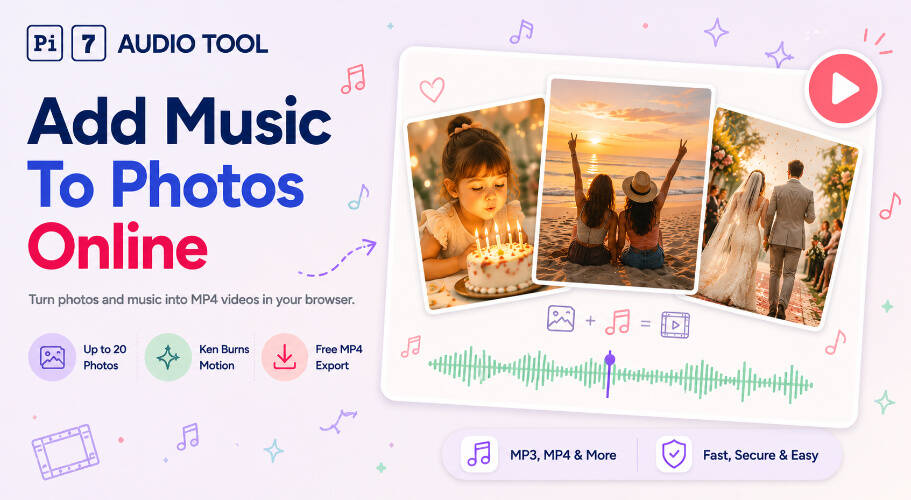
How to Add Music to Photo in 4 Steps
The whole process takes under a minute for a short video. You do not need to install anything or create a login.
- Add your photos - Upload 1 to 20 images in JPG, PNG, WebP, GIF, or BMP format. Drag to reorder them any time.
- Upload your audio - Choose an MP3, WAV, M4A, AAC, OGG, FLAC, or OPUS file. The waveform appears instantly.
- Trim and adjust - Drag the handles on the waveform to trim your audio track to the exact section you want. Set how long each photo shows, or let the tool auto-distribute duration across all slides.
- Export your video - Pick your aspect ratio and quality, then click render. Pi7 outputs a standard MP4 (H.264 video, AAC audio) ready to share anywhere.
We built this so a 10-photo, 30-second slideshow at 720p finishes rendering in about 5 to 8 seconds on a mid-range laptop.
Smooth Transitions and Ken Burns Motion - What They Do
Two style options change how your slideshow feels. The default mode uses hard cuts between photos - fastest encode, cleanest look for montages where you want punch.
Smooth transitions add a crossfade between slides. Portrait photos in a landscape (16:9) video get a soft blurred backdrop fill instead of black bars. The photo sits centered, and the blurred version of the same image fills the background. It looks polished and works well for wedding videos, birthday slideshows, and Instagram reels.
Ken Burns motion adds a slow zoom in or out on each photo. Direction alternates across slides so the motion feels natural rather than repetitive. The zoom runs on canvas at sub-pixel precision - no jitter, no frame jumps. You can combine Ken Burns with smooth transitions for a full cinematic look.
Aspect Ratio and Resolution Options
Pi7 supports three output shapes. Pick the one that matches where you plan to share your video.
| Aspect Ratio | Shape | Best For | Resolution Options |
|---|---|---|---|
| 16:9 | Landscape | YouTube, Facebook, desktop | 720p or 1080p |
| 9:16 | Portrait | Instagram Stories, TikTok, Reels | 720p or 1080p |
| 1:1 | Square | Instagram feed, WhatsApp status | 720p or 1080p |
720p is the default. It renders faster and produces a smaller file. Use 1080p when you want full HD quality for a YouTube upload or a big-screen presentation. If your source photos are smaller than the output resolution, Pi7 adapts the output size down to match - you get a faster encode and a smaller file.
Who Uses This Tool?
Pi7's photo slideshow with music tool fits a wide range of projects. Here are the most common ones:
- Birthday slideshows - parents compile baby photos and set them to a favorite song
- Wedding montages - couples build a memory video to play at a reception
- Tribute videos - family members create a photo tribute for a memorial or anniversary
- Musician static visuals - an artist uploads one photo and a track to post on YouTube
- Vacation photo reels - a quick video from holiday pictures to share on Instagram or TikTok
- Class memory videos - teachers gather end-of-year photos and add a class song
- Small business posts - a shop owner turns product photos into a short video ad
If you want to trim your song to the exact right section first, use the audio cutter to trim your song before adding it - then bring the clip back here.
Can You Add Music to a Single Photo?
Yes. The tool works with just one photo. Upload your image, add your audio file, and Pi7 renders an MP4 where your photo holds for the full length of the song. This is the standard way to upload a music track to YouTube as a video - one static image, full audio, clean MP4 output.
The same waveform trim editor works for single-photo videos. Set your in and out points to clip the song to any length you need. You get the same aspect ratio and quality choices as a full photo slideshow.
If you already have a video clip and only need to attach audio to it, the combine video with audio tool handles that without re-rendering a slideshow.
How to Make a Photo Slideshow with Music for Instagram and TikTok
Short-form social platforms expect vertical video. Set the aspect ratio to 9:16 before you render. Your photos will fill the full portrait frame.
For Instagram Stories or TikTok, keep the video under 60 seconds. Use 5 to 10 photos with auto-distributed timing so each photo gets equal screen time. Turn on smooth transitions - portrait content looks much better with the blurred backdrop than with hard letterboxed cuts.
Export at 720p for social - file size stays small and upload is faster. The quality difference between 720p and 1080p is hard to see on a phone screen. Save 1080p for YouTube uploads or presentations where you are playing on a large monitor.
Need to layer a voiceover under your background music instead? The add background music to audio tool lets you mix a voice track and a music track together as a separate step.
Your Files Stay on Your Device - No Upload, No Account
Pi7 runs entirely inside your browser using WebAssembly. Your photos and audio never leave your device. Nothing is sent to any server at any point during the process.
You do not need to create an account, enter an email address, or agree to any file storage terms. There is no watermark on the output video. The MP4 you download is clean and yours. Close the browser tab when you are done - nothing persists.
This matters when your photos are personal - family memories, a wedding, a tribute to someone who passed. You stay in control of the files the whole time.
Frequently Asked Questions
What audio formats can I use to add music to my photo slideshow?
Pi7 accepts MP3, WAV, M4A, AAC, OGG, FLAC, and OPUS files. Upload any of these and the waveform editor appears so you can trim to the right section. The output audio is always AAC inside the MP4 container - a format that plays on every phone, computer, and social platform.
Is there a limit on how many photos I can add?
You can add up to 20 photos per video. Supported formats are JPG, PNG, WebP, GIF, and BMP. You can reorder photos after uploading, remove any you do not want, and add more up to the 20-photo limit. For longer projects with more than 20 photos, stitch multiple songs together first to build a longer soundtrack, then render in separate batches.
Why does the output resolution look smaller than 720p?
Pi7 uses adaptive output sizing. If all your source photos are smaller than the target resolution - say 500 x 375 pixels - the tool shrinks the output to match. This produces a faster encode and a smaller file without any visible quality loss. If you need a true 720p or 1080p output, use larger source images (at least 1280 x 720 pixels for landscape 720p).